Getting started#
Until you add a source, you’ll see a welcome screen with Add a Source and Explore the Demo Lineup. Later, go to Settings›Sources and tap Add Source. Pick the type, enter the details your provider gave you, and tap Save.
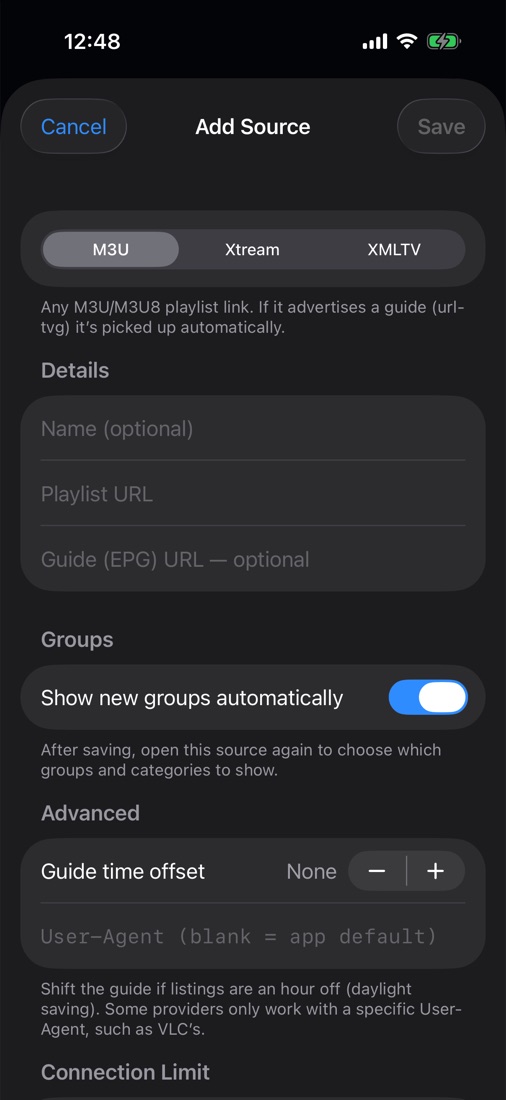
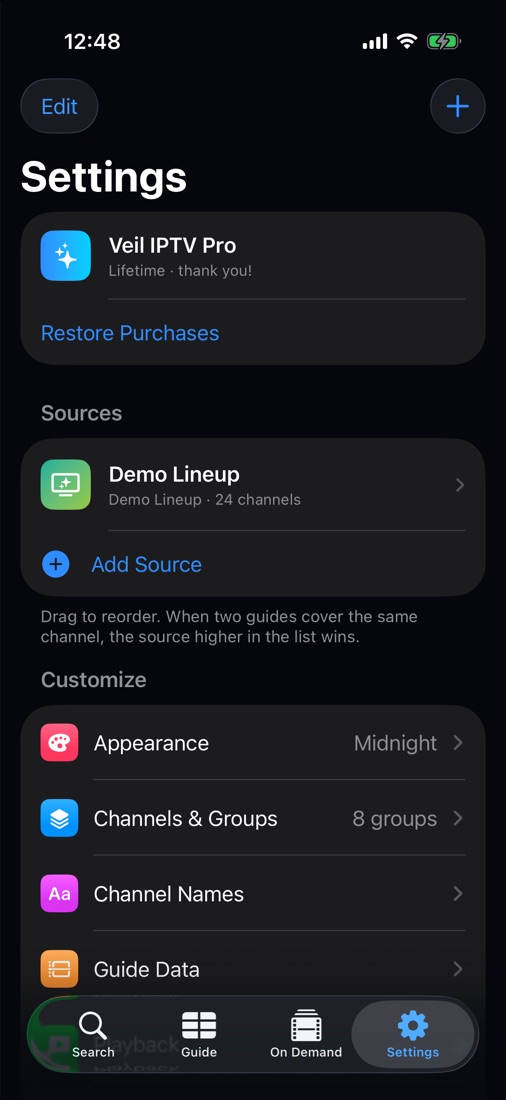
| Type | What you enter | Good to know |
|---|---|---|
| M3U | A playlist URL such as http://example.com/playlist.m3u, plus an optional guide (EPG) URL. |
If the playlist names its own guide, it’s used automatically. A guide URL you type replaces it. |
| Xtream | Server (such as http://example.com:8080), username, password and stream format. |
Brings in categories, logos and the provider’s guide automatically. |
| XMLTV | A guide URL ending in .xml or .xml.gz. |
Adds guide listings only, matched to channels from your other sources. |
- Test before you save with Test Connection, Test Links or Test Guide Link. For Xtream you’ll see your account status, expiry date and connection limit.
- Pasted an Xtream-style playlist link as M3U? The app offers use Xtream login instead. Pasted into the Xtream server field, the same link fills in the server, username and password.
- Choose your groups: after saving, open the source again for Live TV Groups, Movie Categories and Series Categories. To show just a few, tap Select None, then search and tick the ones you want.
- Order matters: in Settings›Sources, tap Edit and drag. When two guides cover the same channel, the higher source wins.
Demo Lineup. Want to look around first? Explore the Demo Lineup (or Settings›Sources›Add Demo Lineup) adds 24 made-up channels playing public test streams, with a sample guide and some replay channels.
To see the welcome tour again, go to Settings›About›Show the Tour Again.
The Guide#
The top panel shows the selected show. Below it are filter chips, then the channel grid.
- Tap a show once to select it. Tap it again to play: a past show on a replay channel plays from its start; anything else plays live.
- Tap a channel’s logo or number to watch it live straight away.
- Live preview: the selected channel plays in the small window, with sound. Tap the speaker to mute, or tap the preview to go full screen. The stream carries into the full player without reconnecting.
- Now jumps back to the current time. The calendar button jumps to another day and time.
- Swipe right on the channel column to widen it for long names; swipe left to narrow it.
- Filter chips: All Channels, Favorites, your own groups and your provider’s groups. With two or more sources, the first chip picks a source.
Long-press a show for Watch Live, Start Over or Watch from Start, Remind Me, favorites, Add to Group, Channel Options…, Watch in Multi-View and Open in Another Player.
The top panel buttons change with the show: Watch (plus Start Over on replay channels) for what’s on now, Replay for past shows, Remind Me for upcoming ones. A bell in the grid marks a reminder; a clock-arrow marks a show you can replay.
Watching#
Tap the video to show or hide the controls.
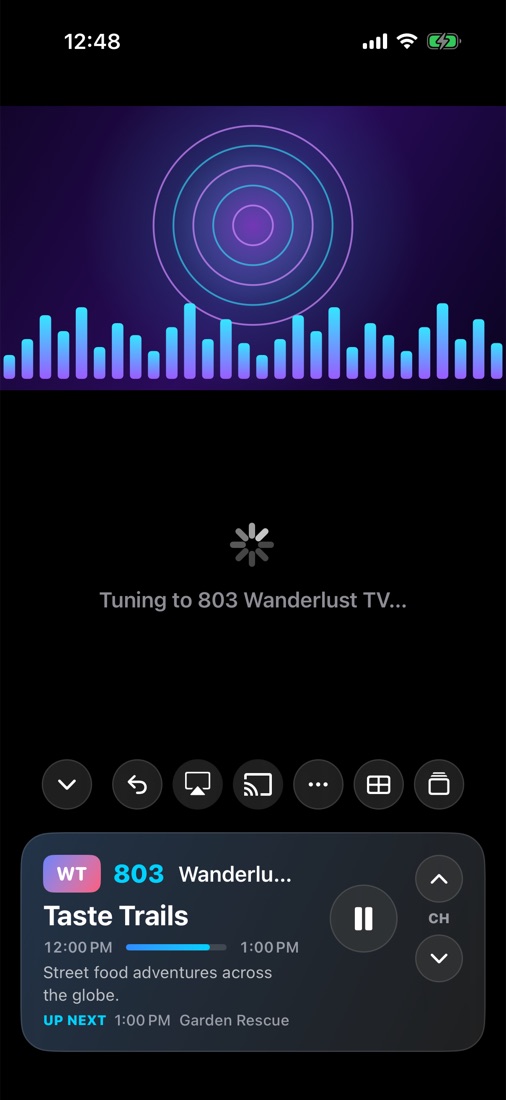
- Change channel: swipe up for next, down for previous, or use CH ▲/▼. Last returns to the previous channel. The surf strip is a mini-guide you can tap.
- CC appears when a channel carries closed captions. Your choice sticks as you change channels.
- … menu: Audio and Subtitles tracks, Open in VLC, Open in Infuse and Copy Stream URL.
- Picture in Picture: tap PiP, or just leave the app while the player is open.
- Playback continues on the lock screen, where next and previous change the channel.
Pause & rewind live TV. While you watch, the channel records to temporary storage on your phone, so pausing picks up exactly where you left off. The show’s progress bar becomes a scrub bar: drag the knob, or tap the part you can rewind into, to jump there. When you’re behind, it shows how far (such as 0:14 behind live) with skip buttons and ● LIVE. Double-tap the bar to go live. You can rewind to the start of the current show. Set how much to keep in Settings›Playback›Keep up to (30 minutes by default).
If a stream fails, a card offers Retry, Open in your chosen player, and Next Channel. Choose the player in Settings›Playback›Open streams in.
Pause & rewind live TV and Picture in Picture need Pro.
AirPlay, Chromecast & other players#
- AirPlay: tap AirPlay in the player and choose your TV.
- Chromecast: tap the cast button and allow Local Network access the first time. Your phone stops its own stream and the TV plays the channel. Channel changes and replays go to the TV. Disconnect to continue on your phone.
- VLC and Infuse: Veil IPTV stops its own playback first, so you don’t use an extra connection. If the app isn’t installed, its App Store page opens.
The Chromecast fetches the stream itself, so channels from providers that block other devices or need a special User-Agent may not play there.
Multi-View#
Watch up to four channels at once, from any mix of sources. Open it from the player’s Multi-View button or Watch in Multi-View in the Guide.
- Add a channel with +: pick a source, group and channel, or search by name or number.
- Tap a tile to hear its sound. Double-tap to watch it full screen.
- Long-press a tile to change its channel or remove it.
Each tile is its own stream. If your provider limits connections, extra tiles may be refused. A failed tile offers Retry.
Search#
Type a channel name, number or show title. Results are grouped by source into Channels, Programs and Movies & Series, with filters under the search box. Tap a row to watch, or the bell on an upcoming show to set a reminder. With nothing typed, Search shows what you watched recently.
On Demand#
If your provider includes movies and series, they appear in On Demand under Movies, Series and My List, with Continue Watching, Recently Added and a row per category.
- Your place is saved, so movies and episodes offer Resume or Start Over.
- On a series, the main button plays the next unwatched episode. Turn on Settings›Playback›Play next episode automatically to keep going.
- Tap the bookmark to add a title to My List.
- Hide categories by opening the source in Settings.
Favorites, groups & channel edits#
- Favorites: tap the star in the Guide’s top panel. Favorites get their own chip.
- Your own groups: long-press any chip and choose New Custom Group…, or use Add to Group on a channel. Groups can mix channels from every source.
- Rename a provider group: long-press its chip and choose Rename Group….
- Settings›Channels & Groups has sorting, reordering, custom groups and your hidden channels.
- Settings›Channel Names removes country prefixes (like “US:”), quality tags (like “HD”) or your own text from names.
Channel Options (the … button or a long-press menu) lets you rename or hide a channel, pick its guide listing by hand, shift its guide times, see how much replay the provider really has, and open it in another player.
Replay & reminders#
Replay. If your provider keeps an archive for a channel, you can Start Over a show that’s on now or Replay one that has aired. Replay has a seek bar, skip buttons and Go Live. Veil IPTV only offers shows the archive really holds. If one isn’t there, Not in the Archive offers Watch Live. If a replay fails, that channel hides replay for 12 hours; Show Replay Again in Channel Options brings it back. To scroll further back, raise Settings›Guide Data›Keep past listings.
Reminders. Tap Remind Me on an upcoming show. You’re notified 2 minutes before it starts by default; change this in Settings›Reminders, which also lists your reminders.
Replay, Start Over and Reminders need Pro.
Parental controls#
In Settings›Parental Controls, lock any group. Locked channels show as “Locked Channel”, with no name, logo, guide or preview. Groups that look like adult content are locked automatically.
- Unlock with Face ID, Touch ID or your PIN. One unlock lasts until you leave the app or tap Lock Now.
- Change your PIN. The app starts with a default PIN and reminds you until you set your own.
- Lock Settings & Channel Options puts Settings behind the PIN too.
- Hide Locked Channels removes locked channels and adult categories from view until you unlock.
Locking never needs the PIN; unlocking always does.
Backup & iCloud sync#
Both are in Settings›Backup & Sync.
- Sync with iCloud keeps sources, favorites, groups, channel edits, settings and My List the same on your devices. Passwords sync through end-to-end encrypted iCloud Keychain. Watch history stays on each device.
- Export Backup… saves a file to Files, AirDrop or Mail. Passwords are left out unless you turn on Include Xtream passwords.
- Restore from Backup… lets you Replace Everything or Merge with This Device.
Backups always contain your playlist and guide links, which often include your login. Keep them private.
Themes#
In Settings›Appearance, choose Midnight, OLED Black, Ocean, Emerald, Amethyst, Ember, Crimson or Graphite, or turn on Custom Accent Color to pick your own.
Plans & free trial#
Veil IPTV is a subscription app with no free plan. Start with a 3-day free trial, then keep it with the yearly plan or unlock it for life with a one-time purchase. Every plan includes:
- The full guide, as far as your provider’s listings go (up to 3 days ahead)
- Pause & rewind live TV, Replay and Start Over
- Multi-View, Picture in Picture and Chromecast
- Reminders, favorites and your own groups
- Match Missing Guides, iCloud sync and themes
- More than one source, in one Guide (yearly and Lifetime; the trial includes one source)
When you first open the app, choose Start 3-Day Free Trial (then $9.99 a year) or Lifetime ($29.99 once). The trial unlocks everything except extra sources. XMLTV guide sources and the Demo Lineup don’t count toward the one-source limit.
- Your plan is at the top of Settings›Sources, with Upgrade, Manage Subscription and Restore Purchases.
- New phone or reinstall? Tap Restore Purchases while signed in to the same Apple Account.
- The yearly plan renews unless you cancel at least 24 hours before it ends, in your App Store account settings.
- If Pro ends, nothing is deleted. Extra sources stay with a PRO badge but don’t load.
iPhone Duo#
Veil IPTV works on both screens, in any orientation, and keeps your place when you fold or unfold. On the inner screen, Settings shows categories beside each page, and the Guide shows which source a channel comes from. On the outer screen, the player’s channel and play/pause buttons sit in the strip on the right.
Troubleshooting#
A source shows an error
Open the source in Settings to read the error, then tap the test button. “Invalid username or password” means checking your details with your provider. If the provider can’t be reached, your last saved lineup stays available.
Channels load but won’t play
- Xtream: set the source’s Stream format to HLS (.m3u8), the default and most reliable choice.
- Try another User-Agent. Some providers only send working video to certain players. In Settings›Playback›User-Agent, try the VLC preset. For one source only, use the source’s Advanced›User-Agent. If things got worse, clear it to return to the app default.
- Open in VLC or Infuse, which can play some streams iPhone can’t.
“Connection limit reached” when changing channels
Many providers allow only one or two streams at a time, and each player, Multi-View tile or cast uses one.
- Open the source and turn on Connection Limit›Wait between channel changes (3 seconds by default, 1 to 10). The old channel closes at once and the next opens after the wait. Flip quickly and only the one you stop on connects.
- Xtream connection limits are listed in Settings›Playback, under Live preview in Guide.
- Still hitting the limit? Turn off Live preview in Guide, and don’t watch on another device at the same time.
Buffering
Raise Settings›Playback›Buffer (Automatic by default, up to 30 seconds). A bigger buffer is smoother but slower to start. Also try HLS or another User-Agent, and check your connection.
No guide data
- Settings›Guide Data lists each guide feed with OK or an error and its listing count. Tap Update Guide Now to retry.
- No feed? Add your provider’s guide URL to the source, or add it as an XMLTV source.
- Some providers don’t have listings for every channel. Those show “No information”.
Guide matched wrong, or missing for a channel
- Open Channel Options›Guide and choose the right Listing. Suggestions come first; check “Now” against what’s on.
- Settings›Guide Data›Match Missing Guides lists channels without listings and their closest matches. Tap Use, or apply all close matches at once.
- Listings an hour off? Adjust the source’s Advanced›Guide time offset, or one channel’s Time offset in Channel Options.
Something looks out of date
Pull down on Settings›Sources, or tap Refresh All Now. Clear Cache reloads everything fresh. By default guides update every 12 hours and playlists every 6; change this in Settings›Guide Data.
FAQ#
Does Veil IPTV include channels?
No. It’s a player only, and doesn’t sell, provide or recommend channels or subscriptions. Use your own subscription, and only add content you have the right to watch.
Where are my logins stored?
On your device, in the iOS Keychain. With iCloud sync on, passwords travel through end-to-end encrypted iCloud Keychain.
Why is Replay missing on a catch-up channel?
Providers sometimes advertise more replay than their archive holds. Veil IPTV only offers shows that are really there.
What happens if I close the app while watching?
Next time, the Guide opens on that channel, playing in the preview. Change this in Settings›Playback with Resume after closing the app and Always start on last channel.
I forgot my parental PIN.
If Face ID or Touch ID unlocking is on, you can use it instead of the PIN, including to change the PIN.